[日本語]
This is a note that summarizes what I learned from workplace and self-study.
I want to share this, since I completed the construction of development environment, I created a project in eclipse and I executed my first program. My first program content is to display “Hello World” on the screen which is the very famous program in the world.
Workflow:
1. Create project.
1.1 Start up eclise and go to “File” > “new” > “Project”.

1.2 Select “Java Project” from “Select a wizard” then click “Next >”.

1.3 Type “practice” in “Project name:” of “Create a Java Project”.

1.4 If “Create module-info.java” appears select “Don’t Create”.
1.5 If “Open Associated Perspective?” appears select “No”.
1.6 If there is “practice” on the screen then creating project was successful.

2. Create package.
2.1 Right click “practice” and select “New” > “Package”.

2.2 Type “pakete.firstprogramming” in “Name” and click “Finish”.

2.3 Check if “pakete.firstprogramming” appears on your screen.
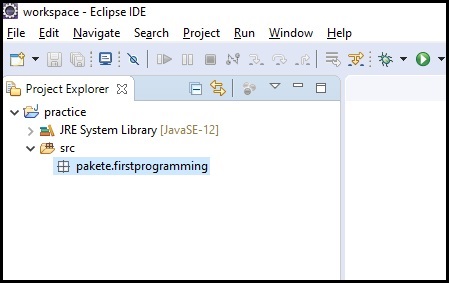
2.4 Check the structure of the project on explorer. If “pakete.firstprogramming” is appearing on “~\workspace\practice\src\pakete” then creating package was successful. At this point the status of “pakete.firstprogramming” is empty.

3. Create class.
3.1 Right click “pakete.firstprogramming” and select “New” > “Class”.
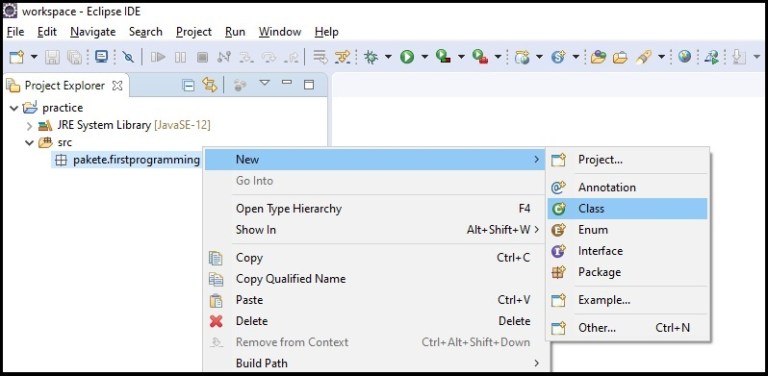
3.2 On “Java Class” > “Name” type “HelloWorld” and click “Finish”.

3.3 Check that the following screen is displayed.

3.4 Check also if these files exists on your explorer, then creating class was successful.
- ~\workspace\practice\src\pakete\firstprogramming\HelloWorld.java
- 〜\workspace\practice\bin\pakete\firstprogramming\HelloWorld.class

4. Programming
4.1 Enter the following source code and save it with “cltr + s” on the keyboard.
package pakete.firstprogramming;

public class HelloWorld {
    public static void main(String[] args) {
        System.out.println("HelloWorld");
    }
}

5. Run the program.
5.1 Right click the “HelloWorld.java” and select “Run As” > “2 Java Application”.

5.2 If you see “HelloWorld” displayed on the bottom of your screen then running the program was successful.

 Newbie Systems Engineer's Log
2 thoughts on “Hello World! Creating Project in Eclipse”