[日本語]
This is a note that summarizes what I learned from workplace and self-study.
-
PostgreSQL
Prof. Wiki: PostgreSQL, also known as Postgres, is a free and open-source relational database management system(RDBMS) emphasizing extensibility and technical standards compliance. It is designed to handle a range of workloads, from single machines to data warehouses or Web services with many concurrent users.
-
pgAdmin
Prof. Wiki: The pgAdmin package is a free and open-source graphical user interface(GUI) administration tool for PostgreSQL, which is supported on many computer platforms. The program is available in more than a dozen languages.
-
Download
1) Access the following URL.
※The latest version may exist, but the procedure is similar.
2) Check the latest version from “Windows x86-64” and press “Download” to download “postgresql-11.4-2-windows-x64.exe”.

※In Windows32bit, normal operation has been confirmed with the following versions.
PostgreSQL 10.10
-
Installation
1) Double-click the downloaded “postgresql-11.4-2-windows-x64.exe”.
2) Click “Next>”.

3) Enter the following information and click “Next>”.
Installation Directory : “C:\PostgreSQL\11”

4) Select the following contents and press “Next>”.
– PostgreSQL
– pgAdmin 4
– Stack Builder
– Command Line Tools

5) Click “Next>”.

6) Set an arbitrary password(postgres) and click “Next>”.

7) Click “Next>” without changing anything on the port setting screen.

8) Click “Next>” without changing anything on the Advanced Option screen.

9) Click “Next>”.

10) Click “Next>”.

11) Installation starts.

12) When installation is complete, uncheck the following and press “Finish”.
– Launch Stack Builder

13) Set environment variables with the following contents.
Add the following to “Path”.
C:\PostgreSQL\11\bin
※Add the PostgreSQL bin folder path.
Click HERE for how to set environment variables.
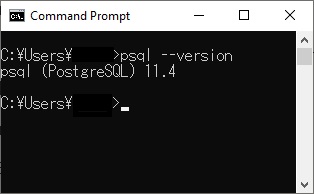
14) Execute the following command at the command prompt. If the version is displayed, it means installation was successfully completed.
psql ––version
-
Start pgAdmin 4
1) From “Start” > “All apps” > “PostgreSQL 11” run “pgAdmin 4” as an administrator and set an arbitrary password in “Set Master Password”.

2) On “Connect to Server” Enter the password that you set in “Installation 6)” and press “OK”.

3) Startup is complete when the following screen appears.

-
Development Environment Setup(Java Web App.)
– Work environment:
Windows 10 Home(64bit)
– Settings Contents for each step:
- Java installation
- Apache Tomcat installation
- PostgreSQL pgAdmin 4 installation
- Eclipse installation
- First launch / setting of Eclipse(Java Web App.)
– Common setting method:
20190727
 Newbie Systems Engineer's Log
7 thoughts on “PostgreSQL pgAdmin 4 Installation”